What does this page create?
An edited image that aims to place one referenced person into your chosen base scene. The base can already contain a group; the extra portrait identifies the one person being added.

Review and sharing decisions
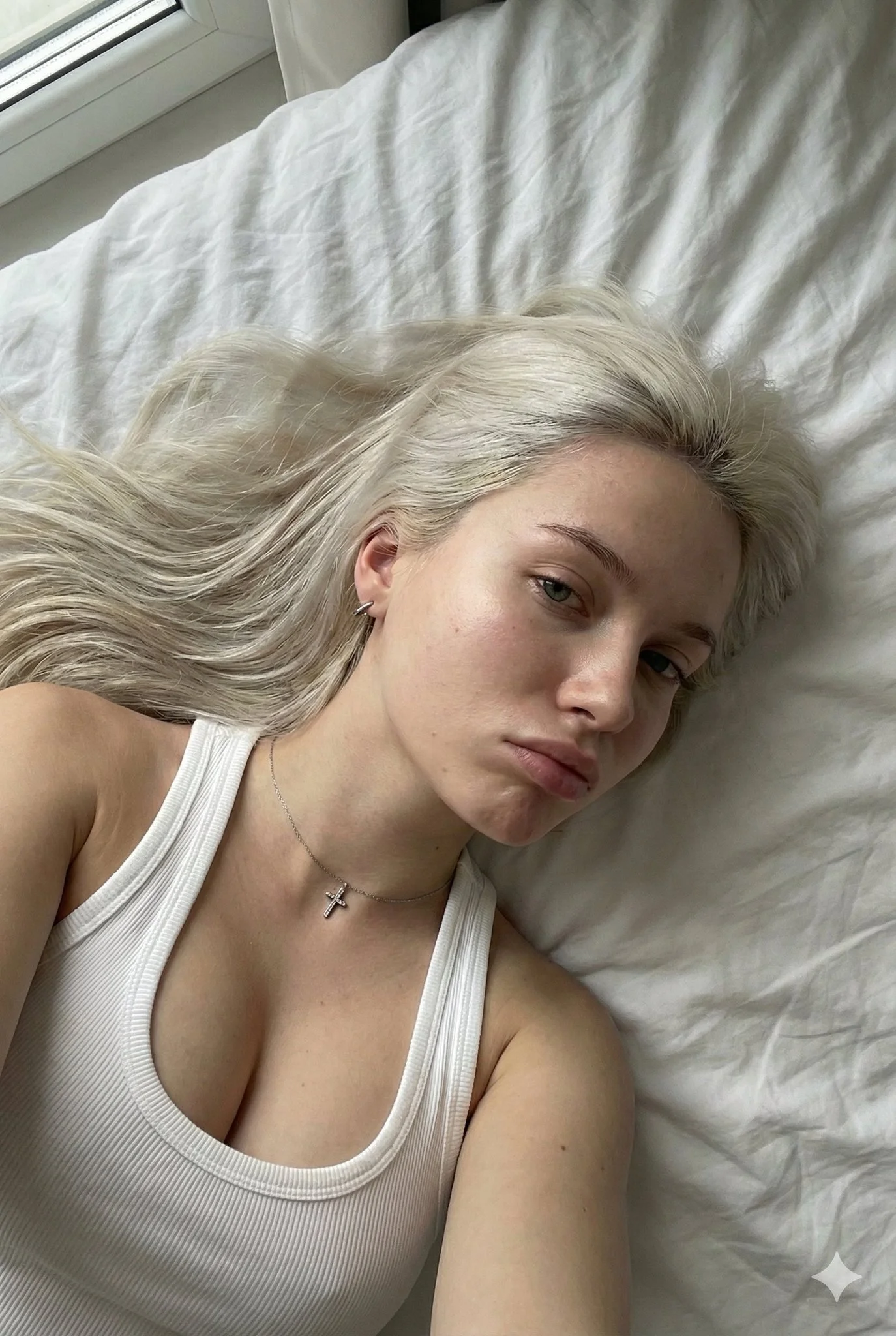
An edited image that aims to place one referenced person into your chosen base scene. The base can already contain a group; the extra portrait identifies the one person being added.
Choose Image to Image. Upload the base scene as Reference image 1 and one person’s portrait as Reference image 2. Both photos are required for this two-image workflow.
You can prepare the inputs and explore settings first. A run uses the displayed credit quote; available trial or promotional credits can cover it when your balance is sufficient.
The selected model, output settings and image quantity determine the live credit quote. Processing depends on the model and queue; follow the task in History until the completed image is ready.
Add People To Photo helps you place one missing person into an existing scene using two images: the base photo and a portrait of the person to add. Plan a clear position, describe the lighting, then review the generated image for faces, scale and background details. Start with one addition so the result is easy to compare with your original.
Open the generatorUse this guide alongside your hair-color references, keeping the original shade visible while you compare clothing and portrait presentation. Use the base scene as reference 1 and the person to add as reference 2.
Upload the scene you want to edit to Reference image 1. Choose a frame with enough open space, visible surroundings and a camera angle that makes the intended position believable.
Upload the person’s photo to Reference image 2. Prefer one clearly visible face, a useful view of their clothing and an angle that is reasonably close to the base photo.
State where the person should stand or sit and compare their size with someone already in the scene. Choose the available output settings, then review Required Credits before submitting.
Open History to follow progress and inspect the finished image. Compare each original face, the new person’s scale, hands, shadows and background before you download or share.
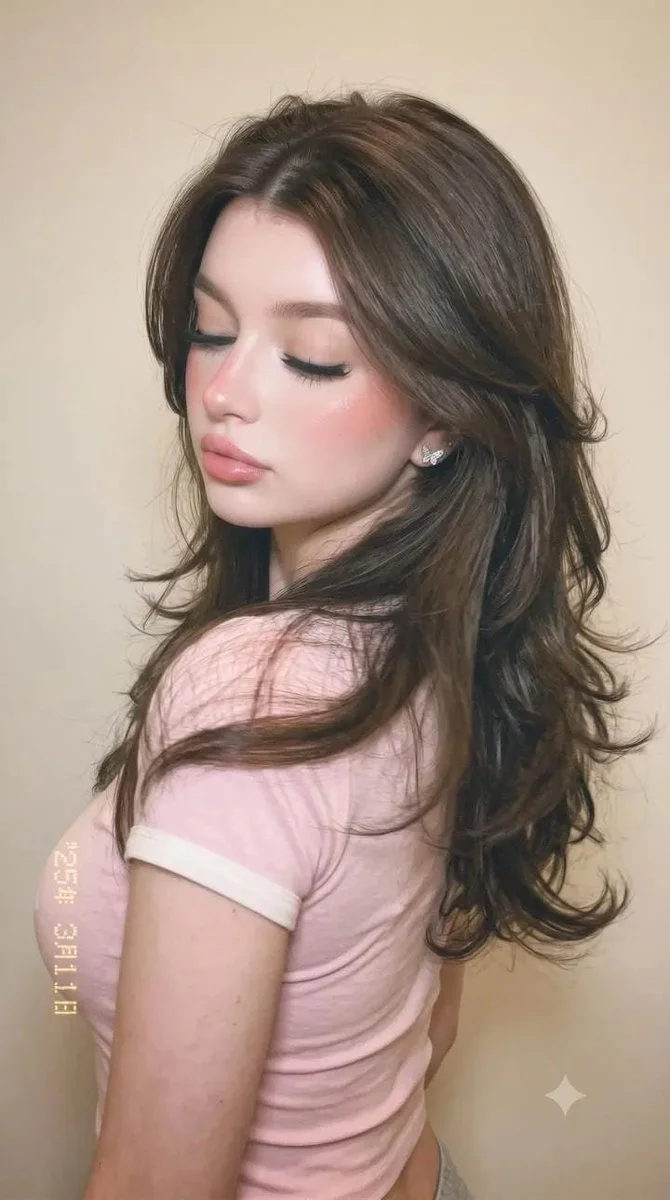
Keep the two inputs distinct. A portrait with a similar camera height and light direction gives the scene a more coherent starting point. Avoid a face hidden behind sunglasses, a heavily filtered close-up or a crop that leaves out the clothing you want visible.
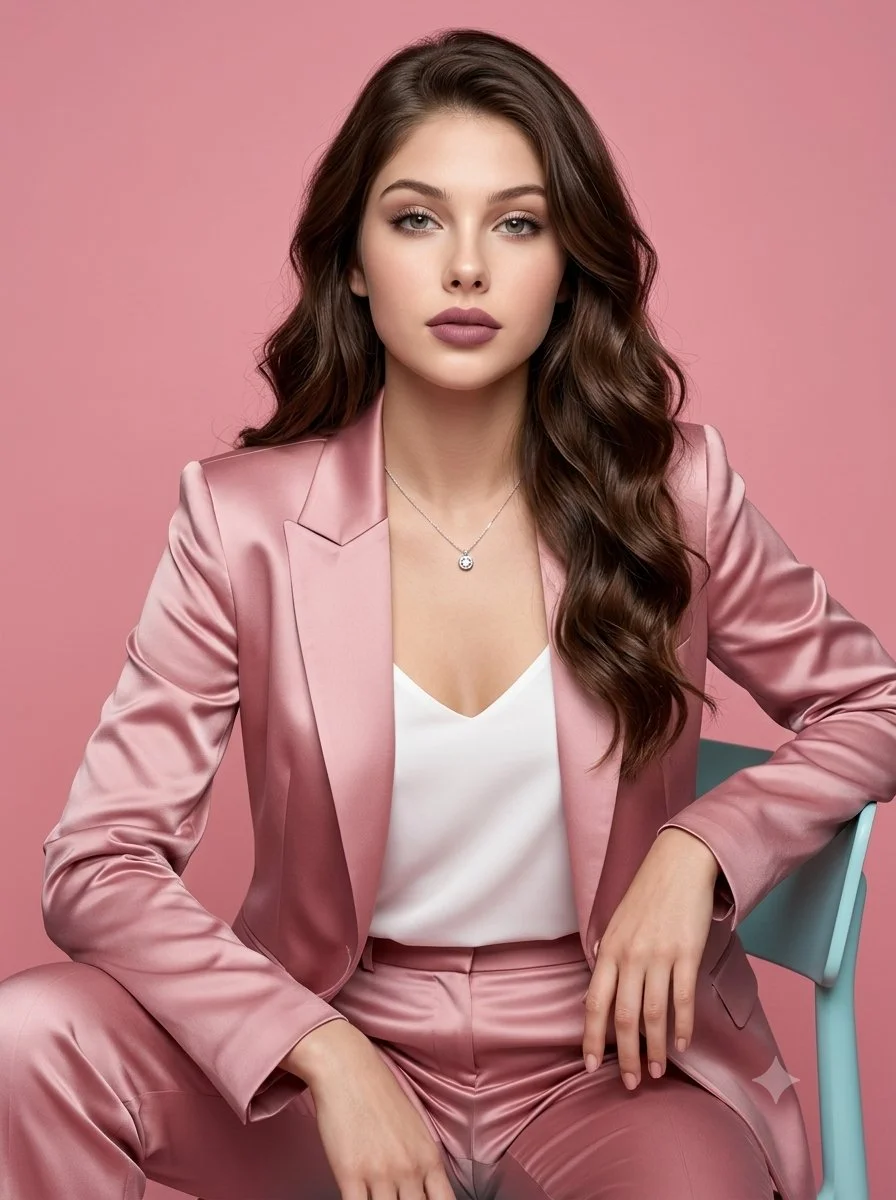
Compare head size, shoulder height and the visible ground or seat. A person who is too large or sits at a different angle will stand out even when their face looks clear.
Describe which side is brighter and where soft shadows fall. Review the new person’s neck, hands and clothing alongside their nearest neighbor.
Mention the existing people and background in your direction, then check them in the finished image. Keep the original file so you can compare any changes.
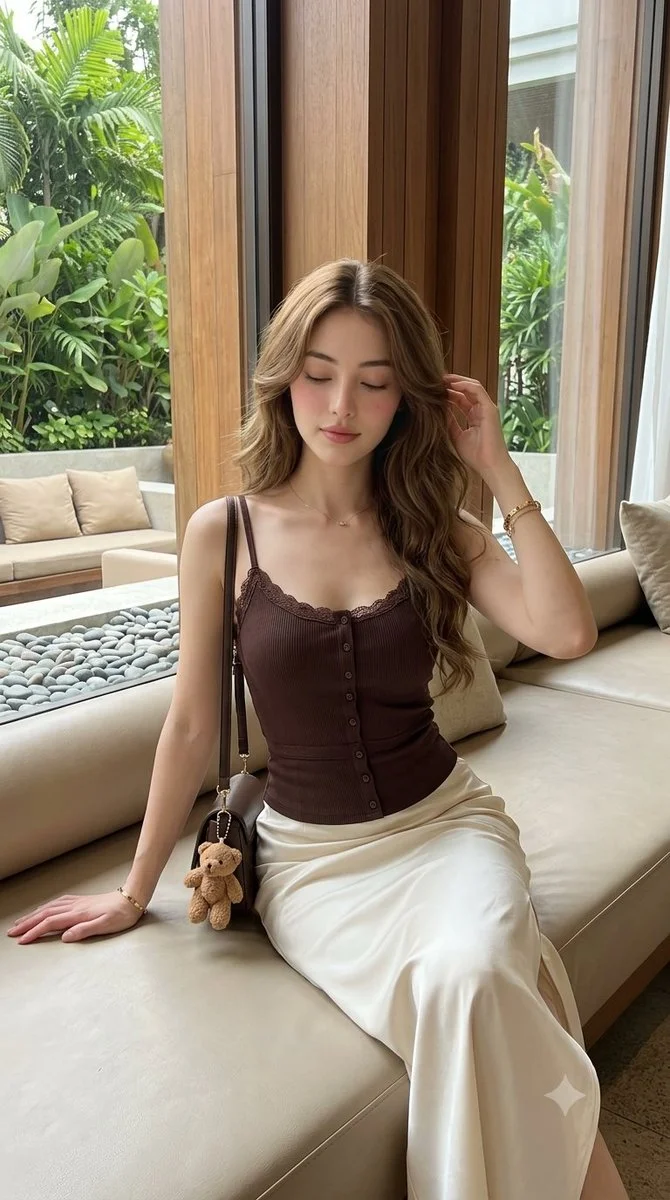
Plan a staff photo update using the existing team frame and one colleague’s portrait. Ask for a natural position at the edge of the group with consistent posture and light.
Create a personal edited keepsake from a base family photo and one relative’s portrait. Pay attention to clothing, eye line and the relationship between the people.
Add one absent participant to a clearly planned composition. When sharing an edited event or documentary-style image, give viewers enough context to understand the change.
Image to Image requires exactly two references: one base scene and one portrait of the person to add. Submission requires an available GPT Image 2 model with a current quote. The price is the live quote shown in the generator, including the selected settings and image quantity. Each new run has its own quote; changing inputs or exploring settings does not submit a job.
Generation time varies with the model, output size and queue. After you submit, use History to follow the task and open the completed image for review. If you leave the page, return to the same account to check your results.
Exactly two for this page: one base or group photo and one portrait of the person you want to add. Keep the base in Reference image 1 and the portrait in Reference image 2.
This workflow adds one referenced person at a time. Review the first edit, then use a suitable reviewed image as the base for a separate run if you want to plan another addition. Each run uses its own displayed quote.
Preparing your photos and exploring the controls does not start generation. A run uses the displayed credits. Your available trial, promotional or purchased balance determines whether you can start without buying more.
Check Required Credits after selecting the available model and output settings. The live quote and chosen image quantity determine the credits for the next run.
Processing depends on the selected model, image settings and queue. Follow the task status in History; a completed image appears there for review and download.
The prompt can ask to preserve existing people, clothing and background, but review the finished image against the original. Check important faces and fine details before sharing.
Text to Image creates an image from your written description. It shows no reference-upload fields and does not submit the two cached photos. Return to Image to Image to continue the photo-based edit.
Inspect the new face, hands, scale and shadows, then compare the original people and background. Keep the source photo and describe the image as edited when that context matters.
pandawig.com · Updated