What can I preview?
Try a jaw-length bob, short curls, a pixie or a cropped fringe. State the haircut in the prompt and ask to keep your face, hair color, outfit and background consistent.

Prepare, direct, compare
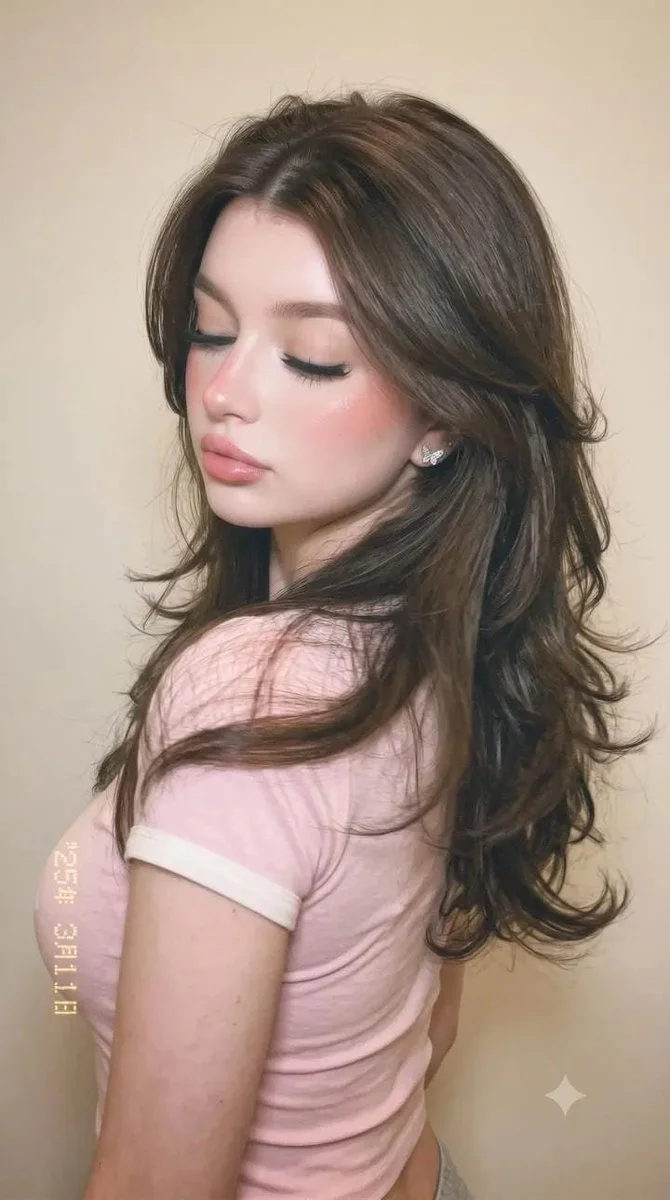
Try a jaw-length bob, short curls, a pixie or a cropped fringe. State the haircut in the prompt and ask to keep your face, hair color, outfit and background consistent.
For a personal comparison, select Image to Image and add one sharp portrait with the full head, visible eyes and both shoulders. Text to Image creates a hairstyle concept without an uploaded portrait.
Upload the portrait, describe one short style and review the displayed settings and credits. Generate once, then open History and compare the haircut with your original.
Free use depends on the credits or offer currently available to your account. Sign in, check your balance and read the generator’s current quote before submitting. Choosing a style or editing your prompt does not start a generation.
Use the credit amount shown beside the generate action for your selected model and settings. Recheck it after changing the image size, model or other options. Your current plan and available balance determine whether you can submit the job.
After submission, follow the job in History. Timing varies with the selected model, image settings and current workload. Wait for the task status to finish rather than assuming a fixed delivery time or submitting the same job again.
An AI Short Hair Filter creates a portrait with a shorter haircut from a photo and a written direction. Use Image to Image to explore a bob, pixie or textured crop on your own portrait; choose a clear photo, describe the cut, check the credit quote and compare the finished image in History.
Try the AI Short Hair FilterUse this guide alongside your hair-color references, keeping the original shade visible while you compare clothing and portrait presentation. Compare the shape around the ears, crown and neckline when exploring a shorter cut.
Start with a simple length comparison. The sequence below moves from shoulder-length hair to a bob and then a pixie, so you can decide how much of the forehead, ears and neckline you want to reveal.
Select Image to Image and upload one photo you have permission to use. Keep the full head in frame, with a clear jawline and visible shoulders. A plain background makes changes around the hair easier to compare.
Name the length, fringe and texture. Start with “jaw-length blunt bob, no fringe, straight texture” or “short textured pixie with a soft side fringe.” Ask to retain the existing color while testing the shape.
Choose from the model and image options available in the generator. Read the current quote before submitting. Keep those settings steady while you compare two cuts.
Open History when the job is ready. Compare the hair silhouette and face with the original. Save your preferred version, then change one detail for the next comparison.
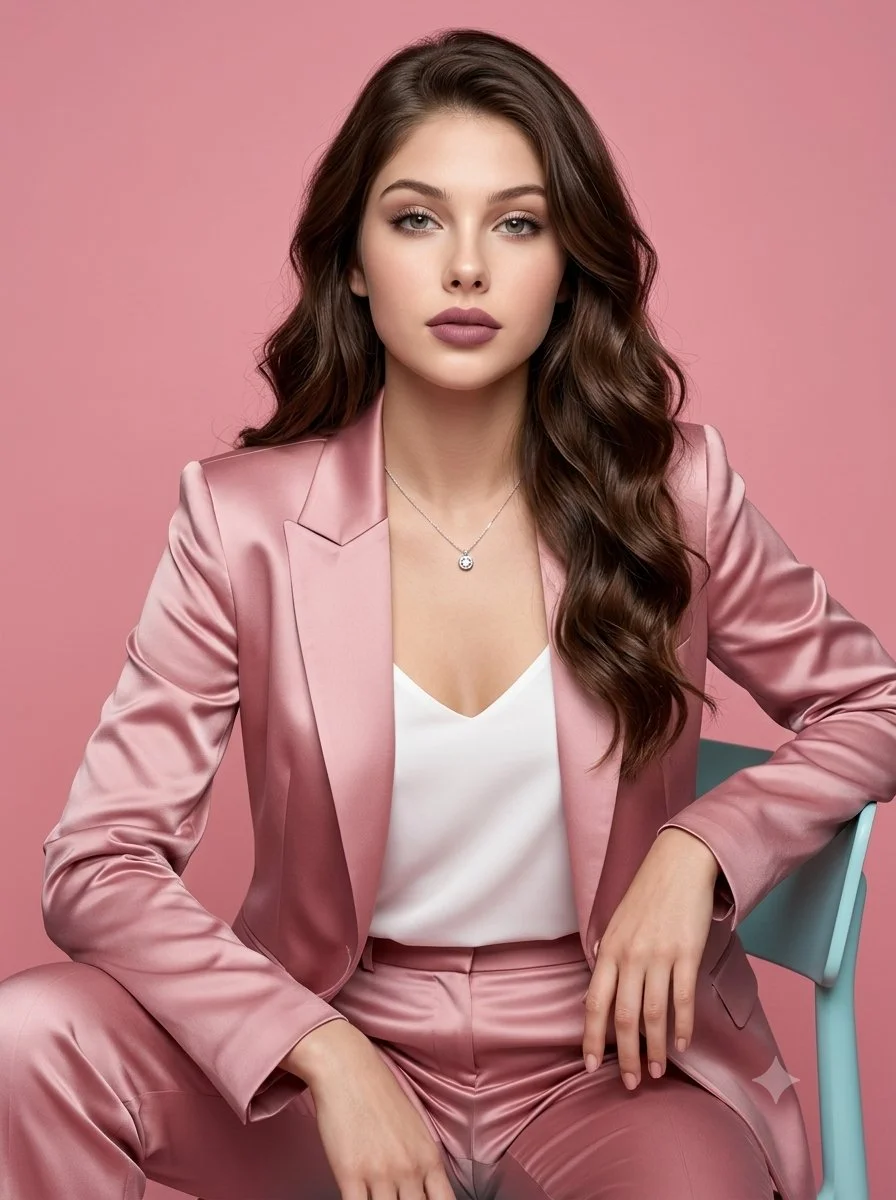
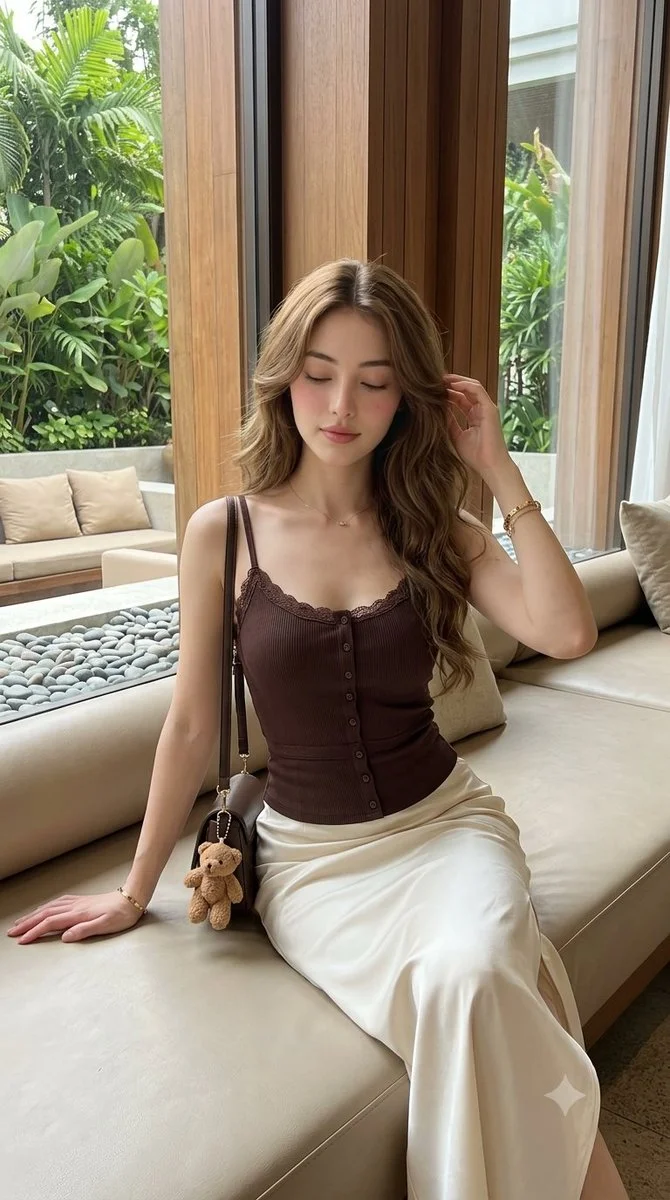
Ask for chin length or jaw length and say whether the ends should curve inward. Compare a blunt outline with soft layers before changing the fringe.
Describe shorter sides and the amount of texture on top. For curls, specify the coil pattern and a natural hairline rather than asking for a generic short cut.
Say how much forehead you want visible and whether the fringe should sweep to one side. Keep color unchanged so the new silhouette is easy to judge.
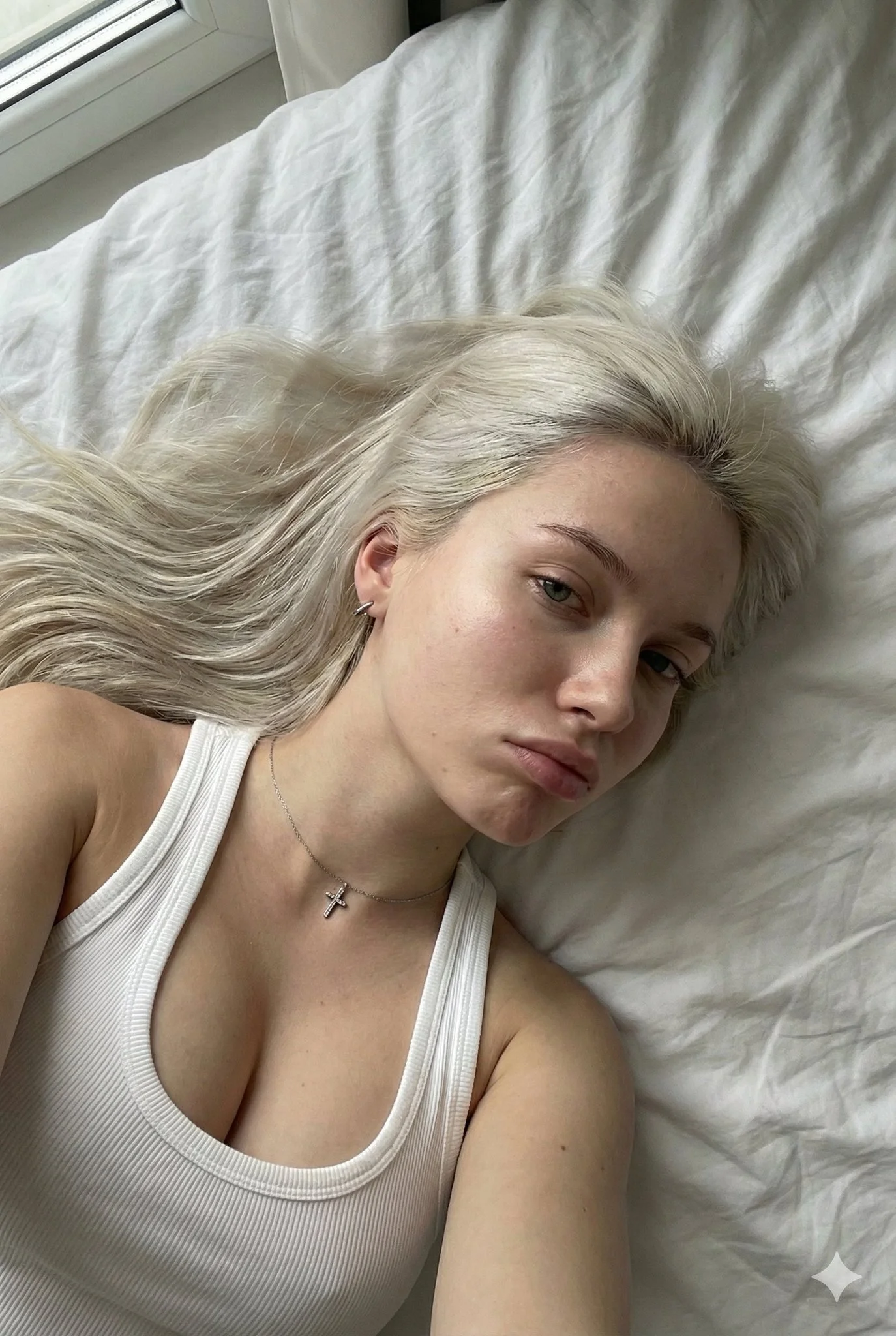
“Using this portrait, change only the hairstyle to a jaw-length bob with a clean outline and no fringe. Keep the same face, skin tone, dark brown hair color, clothing, pose and background. Show natural strands around the ears.”
For a second version, replace the haircut clause with “a short textured pixie with a soft side-swept fringe.” If both the color and cut change unexpectedly, repeat the original color and remove extra styling instructions.
Free use depends on the credits or offer currently available to your account. Sign in, check your balance and read the generator’s current quote before submitting. Choosing a style or editing your prompt does not start a generation.
Use the credit amount shown beside the generate action for your selected model and settings. Recheck it after changing the image size, model or other options. Your current plan and available balance determine whether you can submit the job.
After submission, follow the job in History. Timing varies with the selected model, image settings and current workload. Wait for the task status to finish rather than assuming a fixed delivery time or submitting the same job again.
Yes. Text to Image starts from your written description and does not need reference media. To compare a haircut on your own face, switch to Image to Image and add your portrait.
Ask for the existing color explicitly and change only the length and shape. Compare the result with the original, then try color separately if you want another direction.
Return to a sharper, more evenly lit source photo. Ask to keep facial features, skin tone and pose, simplify the haircut description and review another result before continuing.
Describe the curl or coil texture and where the volume should sit. A rounded curly bob and a tapered cut are different shapes, so test them as separate prompts.
Changing the prompt, mode or settings prepares the request. Review the displayed credit quote and use the generate action when you are ready.
Open History to check the job status and revisit completed images. Compare each version with the same original and keep the wording used for your preferred cut.
Prepare a clear portrait, choose Image to Image and name the cut you want to compare. Check the quote before generating, then review the finished image in History.
Create a short hair comparisonpandawig.com · Updated